Published by the team that makes StopBurnout. Product behavior checked against the current app settings and source. Windows instructions and linked product documentation reviewed October 4, 2026.
Which kind of stretch reminder do you need?
A stretch reminder can do three different jobs: tell you when to move, suggest an activity, or interrupt the computer long enough for you to leave it. These are separate features. An app with a large exercise library can still be easy to dismiss, while a strict break app may offer no exercise instructions at all.
| Your priority | Starting point | What to check |
|---|---|---|
| Free movement prompts and adjustable mini breaks | Stretchly | Break ideas, mini/long intervals and strict-mode settings |
| Microbreaks, rest breaks and a daily limit | Workrave | Whether the layered schedule fits your tasks |
| A simple recurring screen reminder | BreakTimer | Working hours, Smart Breaks and skip/snooze behavior |
| A firmer boundary across Windows monitors | StopBurnout | Warning time, protection level and settings password |
Stretchly, Workrave and BreakTimer are free, open-source options. StopBurnout has a 14-day trial followed by a paid lifetime license. We make StopBurnout. This comparison uses official product documentation, reviewed October 4, 2026, rather than a hands-on ranking. See the free Windows break-app guide for a wider selection.
Build a routine that includes getting away from the screen
Pick the activity before the reminder arrives: stand up, walk for water or change to a task that does not use the screen. That avoids spending the entire break browsing for the perfect stretch. The UK's Health and Safety Executive's screen-work guidance favors short, frequent breaks or changes of activity and recommends moving around or changing posture.
For a first experiment, plan a short movement break after about 50–60 minutes of screen work. Adapt it to the task and any advice you have received for your own needs. The reminder is a cue to change activity, not a treatment for pain or an instruction to force a stretch. Persistent symptoms deserve professional advice.
Use the break schedule calculator to see how work blocks and longer breaks fit your day. If you need frequent brief prompts as well as longer pauses, choose an app that supports separate mini and long breaks.
Set up a Windows reminder in five steps
- Choose the job. Use movement prompts if you need ideas, or a full-screen break if dismissing the reminder is the problem.
- Install from the official source. Follow the project's Windows instructions and read security prompts. For StopBurnout, compare the release checksum on the download verification page.
- Set a work interval and a break length. Change one setting at a time after a few normal workdays.
- Allow enough warning to finish safely. Save your work and choose a stopping point before a full-screen break starts.
- Test during a normal task. Check all connected monitors, sound settings and what happens when you step away voluntarily.
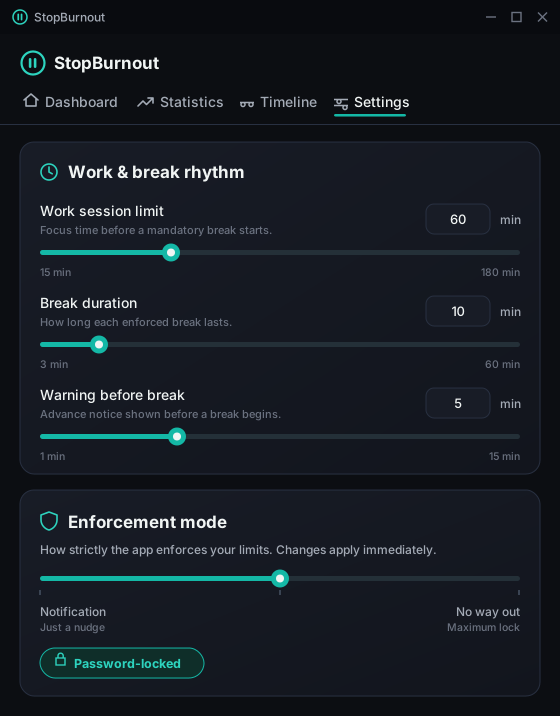
In StopBurnout, a practical starting setup is a 60-minute work limit, a 10-minute break and a 5-minute warning. Those are the app's defaults. The work range is 15–180 minutes and breaks are 3–60 minutes. It does not provide guided stretches or separate 20-second eye-break prompts.
Check what changed after a few workdays
Track something concrete: how many prompts you acted on, whether you left the screen, and which interruption you consistently skipped. If reminders fire during time away, investigate idle detection. If every prompt gets dismissed, try a firmer protection level. If you need exercise instructions, switch to a tool that supplies them rather than expecting a generic timer to do so.
A laptop plus an external display is already a multi-monitor setup. Test both displays before depending on a full-screen break. Our multi-monitor guide explains that check. For call-heavy days, use the meeting-day reminder guide.
Try the routine on your Windows PC
StopBurnout counts keyboard and mouse activity, warns before a break and offers notification or full-screen modes. Try all modes for 14 days.
Frequently asked questions
What is a good free stretch reminder app for Windows?
Stretchly provides customizable mini and long breaks with break ideas. Workrave offers microbreaks, rest breaks and a daily usage limit. Both are free and open source. Choose according to the schedule and prompts you will actually use.
Does StopBurnout tell me which stretches to do?
No. StopBurnout provides the timing and interruption, including full-screen breaks in its locked modes. It does not include guided exercises or stretch coaching.
Can I use StopBurnout for 20-second eye breaks?
No. StopBurnout's break duration starts at 3 minutes. Use a tool with short eye-break prompts if that is your main requirement.